
One PC. Everyone gets a seat.
Install Hydra on your Windows PC and try every feature free for 7 days. You only need your email: no card, nothing to pay.
For Windows 10 and 11. One license covers every seat, however many you add.
What your PC needs.
No second PC needed. Each person needs a screen, keyboard and mouse, and they all plug straight into your PC.
From download to a seat for everyone.
Five steps. Here is what you click in each one.
-
Plug everything in
Before you install, connect a screen, a keyboard and a mouse for each person, all to the same PC.
- Headsets, speakers, webcams and game controllers work too. Give each person their own.
- One person can have two or more screens. They work as one extended desktop.
More: Keyboards, mice and controllers · Sound
-
Run the installer
Open the file you downloaded. The installer checks your PC first: your Windows version, your graphics card, your screens and Windows' security settings.
- Accept the license agreement and click Install.
- It makes a Windows restore point first. Leave that ticked.
- Installing needs nothing in the BIOS, and Secure Boot stays on. Setup turns Memory Integrity off while Hydra is installed and puts it back when you remove it.
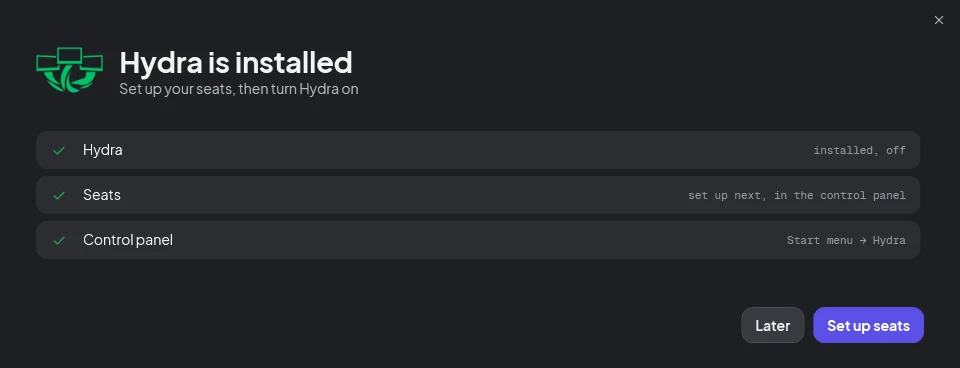
- At the end, click Set up seats to open the panel.
-
Set up the seats
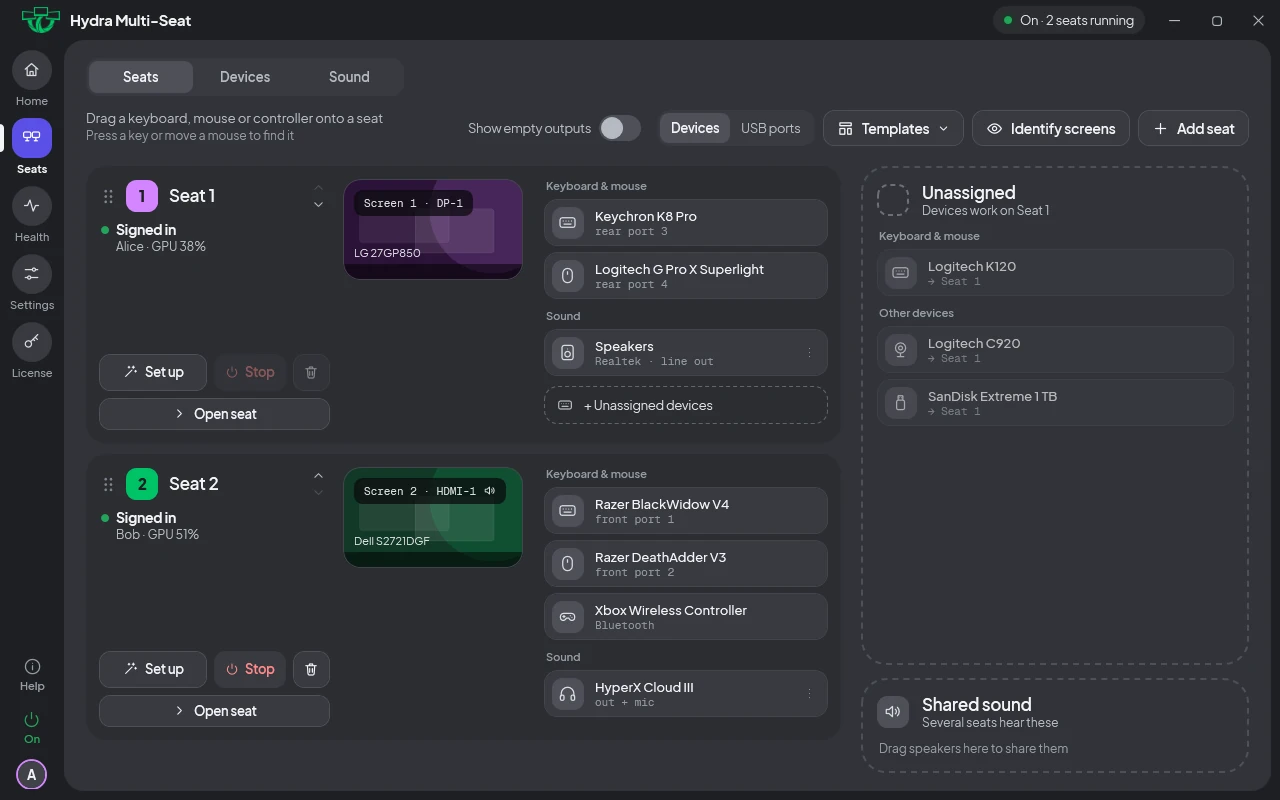
The Seats page lists every screen, keyboard, mouse, controller and sound device on your PC. Hydra is still off, so take your time.
- Drag each keyboard, mouse and controller onto its seat.
- Not sure which one is which? Press a key or move the mouse, and it lights up in the panel.
- Identify screens puts a letter on every monitor, so you know which screen is which.
- Set up on a seat walks you through it one device at a time. Add seat makes another.
More: Seats · Screens · Identify screens
-
Turn it on and start your trial
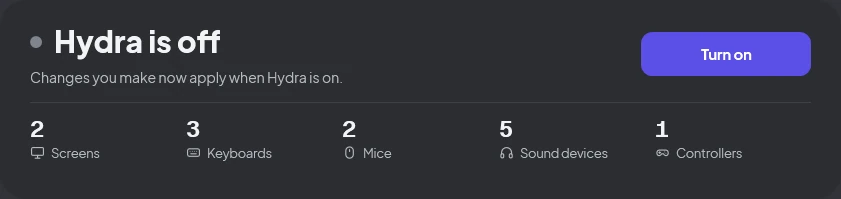
Click Turn on. The first time, Hydra asks you to start your free trial.
- Enter your email. We send you a 6-digit code: type it in.
- Every feature is yours for 7 days. No card, nothing to pay.
- One restart to finish setup: choose now or at the next restart. Your seats start after it.
- Have a license key already? Enter it instead of starting the trial.
More: Turning it off and on
-
Everyone signs in
After the restart, every screen shows its own Windows sign-in. Each person signs in with their own account, and all of you use the PC at the same time.
- Each person gets their own desktop, apps, files and game saves.
- Need another account? Add it in Windows Settings, under Accounts.
- Seats you change later in the panel apply at once, with no restart.
What to do if something goes wrong.
The quick fix for each problem. Read more opens the full answer in the safety guide. Still stuck? Ask us.
A keyboard or mouse types on the wrong seat
Open the panel from any seat and drag the device to the right seat on the Seats page.
Read moreA screen stays black
Check the cable and that the monitor is on. Hydra tries to repair a seat by itself and tells the other seats.
Read moreYou can't reach the panel
Hold Ctrl + Alt + F12 for 5 seconds on any keyboard, wait for three beeps, then restart. The PC comes back with Hydra off.
Read moreWindows won't start, or keeps restarting
After 2 failed starts in a row, safe start brings Windows up with Hydra off.
Read moreThe PC had a blue screen
It comes back with Hydra off. Send us the report from the panel, then turn it on when you're ready.
Read moreYou want it gone
Remove Hydra in Windows Settings, under Apps, like any app. After one restart every screen is back.
Read moreEvery safety feature.
Safe start, the crash guard, the emergency key and the recovery file: what each one does and when.
Read the safety guideEvery part, in plain words.
Seats, screens, sound, keyboards and controllers, and the panel: what each one does and how to change it.
Read how it worksOne license. Every seat included.
After the trial, pick monthly, yearly or lifetime. One license covers every seat on your PC.
See pricing