
Something not working? Start here.
Try the quick fixes first, then find what you see below. If it still isn't right, contact support and we'll look into it with you.
On this page
- Quick fixes
- Which Windows works
- Get help faster
- Won't install or start
- Seat 2 doesn't start or isn't signed in
- Black or missing screen
- Two graphics chips
- Keyboard, mouse or controller
- Sound
- A game or launcher
- Parsec, Sunshine and remote access
- Windows won't start, restarts or crashes (BSOD)
- Hydra turned itself off
- License and trial
- Updates
Quick fixes
These are the setups that are easiest to get working and to get help with. Hydra supports the other ways too, so nothing here is a must. Stop as soon as it works.
- Update Hydra. In the panel: Health, then Check for updates.
- Check your Windows version. Hydra works best on the newest Windows. Enter your version on Compatibility to see whether updating would help.
- Plug the screens into one graphics card. Hydra works best when every display is on the same card, not split between the card and the motherboard.
- Have integrated graphics too? It can stay on, but it causes problems on some PCs. Disable it to see if that's the cause.
- Give each seat a separate Windows account. Windows' Settings, Accounts, Other users. Two seats on one account share programs and settings, which confuses many apps.
- Hydra is off? Open the panel and choose Enable Hydra and restart.
Which Windows works
Keep Windows up to date and you're set. Two things to know:
- Windows 11 22H2 and 23H2: works, and can have issues on some setups.
- Windows 10: be on 22H2.
Not sure what you have? Send a Problem report, it tells us. The full list is on Compatibility.
It stopped working after a Windows update
A Windows update can change the parts of Windows that Hydra works with. When one breaks something that worked before, we detect it and work on a fix, which reaches you as a Hydra update. Until then, Hydra can switch off what might not work, to protect your PC, and Health tells you what is off.
The best fix is the next Hydra update, so keep checking in Health. If you need your seats sooner, you can go back to the previous update in Windows' Settings: Windows Update, Update history, Uninstall updates. Contact support if you want us to look at your PC.
Get help faster: send a Problem report
In the panel, open Health and choose Report a problem, right after it happens. Add a line on what you saw. It gives us your Windows version, graphics cards and logs, so you don't have to look them up.
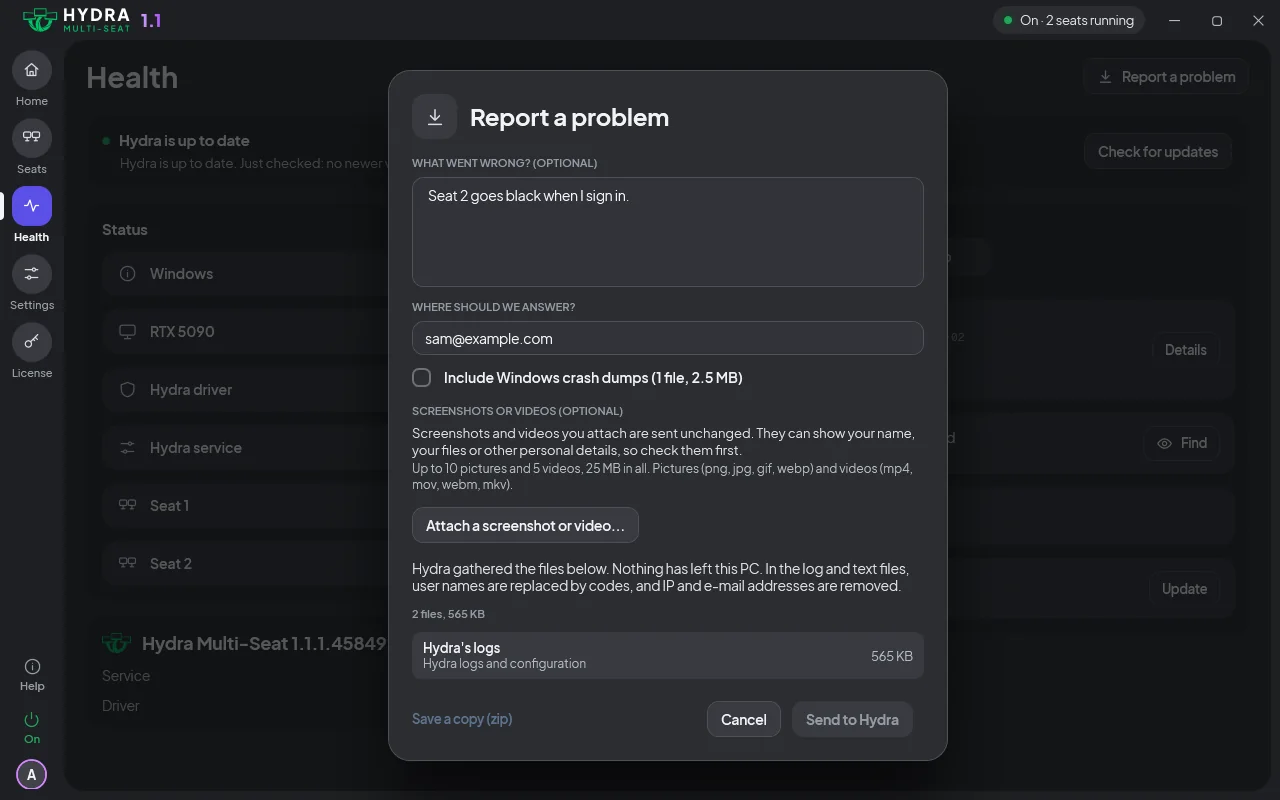
It works with Hydra on or off, and you see what goes in before anything is sent. After a blue screen, leave Include Windows crash dumps ticked. For a game, name it. More in Health and reports.
Won't install or start
Setup is done, but the panel says Hydra is off
That's normal after a first install: Hydra waits until your seats are set up. Choose Set up seats at the end of setup, or open the panel, follow the steps, then turn Hydra on. It takes one restart.
The panel says "Restart Windows to finish installing Hydra"
Part of Hydra loads with Windows, so the install finishes at a restart. Restart the PC and seats start after that. If the message comes back after the restart, contact support.
Setup asks to turn off Memory Integrity
Hydra's driver can't run while Memory Integrity is on. Tick Turn off memory integrity and install, then choose Install. Windows restarts once.
Setup needs nothing in the BIOS, and Secure Boot stays on. Removing Hydra turns Memory Integrity back on.
Setup says your PC or a policy keeps Memory Integrity on
Something outside setup locks that setting, so setup can't change it for you. Turn off Memory Integrity in Windows Security, then run setup again. If it says A policy on this PC, ask whoever manages this PC to change it.
Setup says Windows requires Windows Hello
Seats sign in with a password, and this setting allows only Windows Hello. In Windows' Settings, open Accounts, then Sign-in options, turn that requirement off, then run setup again.
Setup says parts of an earlier Hydra are still on this PC
Windows finishes removing those files at a restart. Restart Windows, then run setup again. If setup still says it, contact support.
The panel says Hydra's service isn't running or couldn't start
- Choose the button on that page: Start it, Start again or Turn on. Your seats and settings are kept.
- Doesn't stay running? Restart the PC.
- Still not running? Its files may be damaged. Download setup and run it over your install: it repairs Hydra and keeps your seats.
If it still won't run, send a Problem report and contact support.
Seat 2 doesn't start or isn't signed in
Seat 2 never starts, and my Windows isn't the newest
Seat 2 depends on your Windows version. Check yours in Which Windows works, then update Hydra from Health. If your version should work and seat 2 still doesn't start, contact support.
The panel shows seat 2 as "Waiting for screen"
Plug in seat 2's monitor and switch it on. The seat starts by itself.
A seat set to start By hand starts from the panel. More in How seats start.
Seat 2 doesn't start with the PC
Open seat 2's page in the panel and set When it starts to Automatic.
If the panel shows Your Windows version needs an update, run Windows Update and restart.
Seat 2 shows the sign-in screen after every start
Open seat 2's page in the panel and turn on Sign in automatically when the seat starts.
The password is accepted on seat 2, but no desktop comes up
In the panel, stop seat 2, start it again and sign in. Save that seat's work first.
Both seats on one Windows account? Give each seat a separate account. Still no desktop? Contact support.
After Switch user, the other person's programs disappeared
They are still running, and come back when that person signs in again.
A notice says a seat stopped and its screens went to seat 1
Hydra tried to repair the seat and couldn't, so it stopped only that seat and left the others working. Save what you need, then start the seat again from the panel. It gets its screens, keyboards and mice back.
Happens again? Send a Problem report and contact support. More in When one seat has a problem.
Black or missing screen
A seat's screen stays black
- Check the cable, and that the monitor is on.
- Give it a minute: Hydra tries to repair the seat by itself.
- Still black? From another seat, stop that seat and start it again in the panel, or sign that seat out.
- No change? Restart the PC. A restart often clears a stuck seat.
Black again after the restart? Send a Problem report and contact support.
A seat's screen went black after a few minutes with nobody there
The seat is resting. Touch that seat's keyboard or mouse.
To change the time: Screens off when idle in Settings.
A notice asks to sign out a seat with no working screen
Choose Sign that seat out. It usually brings the screen back. Save that seat's work first if you can.
A screen goes dark for a few seconds and comes back
A loose or failing cable often does this. Check it at both ends, or try another cable. A monitor moved to another port keeps its seat. If it keeps happening with a good cable, contact support.
A monitor I plugged into another port shows nothing
Open the panel and give the screen to a seat. Identify screens shows which monitor is which.
I moved a screen to another seat and the panel put it back
Read the notice: it tells you the one thing to do.
The panel keeps the last screen of the seat you are using. Move another screen first, or move it from another seat.
The whole PC is dark
- Check that the monitors are plugged in and on.
- Restart the PC.
- Still dark? Use the emergency key (Ctrl Alt F12 held for 5 seconds), then restart. You get your PC back, with your seats kept, and we can find out what happened.
- Keyboard dead too? Use the recovery file.
Then send a Problem report and contact support so we can get your seats working again.
A notice says the graphics card keeps resetting
The graphics card is failing and recovering again and again, and this affects every seat. Save your work and send a Problem report from the notice, then contact support. Check that the graphics driver is up to date while you wait for an answer.
Two graphics chips
My PC has integrated graphics and a graphics card, and something is wrong
Hydra supports integrated graphics left on, and it works on many PCs, but it can cause problems on some. Disabling it is the quickest way to find out whether it's the cause. There are two ways, and the BIOS is the one we recommend.
First, plug every screen into the graphics card. A screen left on the motherboard goes dark once integrated graphics is off.
Recommended: in the BIOS
This is the most thorough way to switch it off, so it's the one to try first.
- Restart the PC and press Delete or F2 repeatedly as it starts. If it opens in a simple view, switch to Advanced mode.
- Find the setting called Integrated Graphics, Internal Graphics, iGPU or IGD and set it to Disabled. Where to look is in the table below.
- If there's a setting called Primary Display or Initial Display Output, set it to PCIe or PEG (the graphics card).
- Save and exit, usually with F10.
| Motherboard | Usually under |
|---|---|
| ASUS | Advanced, then System Agent (Intel) or NB Configuration (AMD), then Graphics Configuration |
| MSI | Settings, Advanced, then Integrated Graphics Configuration |
| Gigabyte | Settings, then IO Ports or Peripherals |
| ASRock | Advanced, then Chipset Configuration |
Menus differ between motherboards, so your manual has the exact path. If you only find iGPU Multi-Monitor, set it to Disabled and make the graphics card the primary display.
Otherwise: in Device Manager
- Right-click Start and open Device Manager.
- Open Display adapters, right-click the integrated GPU (Intel, or AMD Radeon Graphics) and choose Disable device.
- Restart the PC.
On a laptop, keep the integrated GPU on: the built-in screen usually runs through it. If the problem stays, or you'd rather keep integrated graphics on, contact support and we'll look at your setup.
A screen won't move to the other graphics card
Hydra works better when every screen is on one graphics card, so try that first. If the other card is your PC's integrated graphics, plug your screens into the graphics card and disable integrated graphics.
With two separate graphics cards it can be different, so contact support and we'll help you set it up.
Keyboard, mouse or controller on the wrong seat
A keyboard or mouse types on the wrong seat
Open the panel's Seats page and drag the device to the right seat. It changes at once.
More in Handing a device to another seat.
A keyboard or mouse does nothing on a seat
- Unplug the device and plug it back in.
- On the Seats page, check it's on the right seat and that the seat is running.
Still nothing? Restart the PC. If it stays dead, send a Problem report from another seat and contact support.
A device I plugged in works on seat 1
Give the device to the seat you want in the panel.
I handed away the keyboard or mouse I was using
Wait 15 seconds: it comes back by itself.
A controller works on the wrong seat, or on both
Open the panel and give the controller to the seat that plays with it.
A controller didn't move when I handed it to another seat
Hand it over once more. If it stays on the old seat, unplug it and plug it back in, and contact support if that doesn't move it.
Sound
No sound on a seat
- Open the seat's page in the panel and check its default output. A chime tests it.
- Just plugged in a sound device? Drag it to the seat, or to Shared sound.
More in Each seat picks its default output.
I hear another seat's sound
Give each person a headset or speakers, and give each device to one seat in the panel.
One pair of speakers can serve two seats: see Left and right split.
Turning the volume down on one seat changes another
Use the volume control on the seat you are on. Each seat has a separate volume on shared speakers.
A game or launcher
Most games will work on a second seat with nothing to set up. Games shows what we know about each one, and it's the first place to look.
A game or app won't start on a seat, or says it is already running
- Look the game up on Games to see what to expect.
- In Settings, set Seat isolation to Standard, the default, then sign out of that seat and back in. Standard gives each seat a separate copy of apps like Steam.
- Still won't start? Try Off, and sign out and back in again.
Full (experimental) protects each seat's programs from the other seats and doesn't help a game start. More in Seat isolation. If you think your game should work and it doesn't, contact support and name the game.
Steam, a launcher or a VPN app runs on one seat only
These apps often allow one copy per Windows account. Give each seat a separate Windows account, then sign out and back in.
More in A game or app won't work? Still on one seat? Contact support.
A game with anti-cheat won't run on a second seat
See what to expect for it on Games, set Seat isolation to Standard, then sign out and back in.
Not listed, or it should work? Contact support and name the game.
A tool on one seat can't see or end programs on another seat
That's what Seat isolation Full does: it protects each seat's programs from the other seats. Set it back to Standard if you need that tool to reach them.
Parsec, Sunshine, Moonlight and Remote Desktop
Parsec, Remote Desktop or another remote app knocks the other seat off
Windows has one main console, and these apps take it over when they connect, which can drop the seat that was using it. Use one remote connection at a time.
If a remote app still disturbs another seat, tell us which one: contact support.
I want to stream a seat with Sunshine and Moonlight
Open that seat's page in the panel and turn on Sunshine compatibility (experimental), then connect from Moonlight on your other device on your home network.
It's experimental, so contact support if it doesn't work on your PC.
Windows won't start, restarts or crashes with a blue screen (BSOD)
Windows doesn't reach the desktop, or keeps restarting
Let it try: after failed starts, safe start brings Windows up by itself so you can use the PC. Can't wait? Run the recovery file.
Then send a Problem report from the Safe start page and contact support, so we can find out what stopped it.
My PC crashed with a blue screen (BSOD)
Choose Report a problem and leave Include Windows crash dumps ticked: the crash record tells us what happened. If Hydra came back off, turn it on when you are ready. Your setup is unchanged.
Crashed more than once? Contact support. More in Crash guard.
The graphics card is missing from Windows, or shows Code 43
- Run Windows Update and restart.
- Still gone? Shut the PC down, switch it off at the wall for a minute, then start it.
If that doesn't bring it back, check that the card and its power cables are seated firmly.
No keyboard, mouse or screen works and I can't reach the panel
- Restart the PC.
- Still stuck? Use the emergency key (Ctrl Alt F12 held for 5 seconds) until you hear three beeps, then restart. You get your PC back, with your seats kept.
- No beep? Use the recovery file.
Then contact support so we can get your seats working again.
Holding the emergency key did nothing
Hold every key on the same keyboard for the whole time. No beep? Use the recovery file.
Pressed it by accident? Choose Keep Hydra on on the notice, and nothing changes.
Hydra turned itself off
Hydra turns itself off when something goes wrong during a start, so that a problem can't lock you out of your PC. Your seats and settings are kept, and the PC runs as a normal Windows PC until Hydra is back on. It happens when:
- Windows failed to start twice in a row (safe start);
- Windows crashed with a blue screen (BSOD) that involves Hydra, or a start was cut short by a power cut or a forced restart (crash guard);
- a seat kept failing and couldn't be repaired (when one seat has a problem);
- Hydra can't confirm it fits this version of Windows (Windows and Hydra updates).
Open the panel and choose Report a problem first, because the report includes Windows' record of what happened. Then choose Enable Hydra and restart. If it turns off again, something is wrong that we need to look at, so contact support. The whole story is on Safety.
Health says Hydra is off
Its safety check failed: Hydra can't confirm it fits this Windows yet, so no seat starts. See It stopped working after a Windows update. Because of this PC's setup: turn off Memory Integrity in Windows Security and restart. Could not finish checking: nothing to do, it turns on by itself.
Not sure which applies? Send a Problem report from Health and contact support.
Health says Hydra hasn't been tested with this version of Windows yet
Keep using Hydra: this is normal on a new Windows build. Some features can be off until we've tested it, and Health names anything that is. If something doesn't work, contact support.
A screen stays dark while Hydra is off
Windows left that screen switched off. Right-click the desktop, open Display settings and turn the screen on there.
Your seats and settings are kept for when you turn Hydra on again.
License and trial
The panel says it can't reach the license server
Check that the PC is online, then choose Retry on the License page, or Check now on the panel.
Hydra keeps running and shows how many days are left.
The trial code didn't arrive
Check your spam folder. Still nothing? Tell us through Contact.
The trial form refuses the email or the code
- A code was sent a moment ago: wait a minute, then ask for another.
- That code has expired or Too many wrong codes: send a new one.
- This email has already used its free trial: plans are on Pricing.
On a PC that had a trial before, use the same email as the first time.
Hydra won't turn on, or the panel says the PC's date and time are behind
In Windows' Settings, open Time & language, then Date & time. Turn on Set time automatically, choose Sync now, and restart.
Starting the trial says a newer version is released
Choose Update now on that form, then start the trial.
The License page says the key is active on another PC
Move it to this PC on Move your license.
Updates
I don't see an update
Open Health, choose Check for updates, then Download and install.
An update didn't install
Open Health and choose Try again on the update card. Your setup keeps working on the previous version. If it fails again, send a Problem report and contact support.
The panel says "Restart Windows to finish the update"
Save your work, then restart the PC.
Not here, or the steps didn't help? Contact support and tell us what you see, with a Problem report if you can.